Context
With RCS 3D DM version 9.11, it is possible to modify rendering data with information coming from the raw material catalog.
With RCS 3D DM version 10.0 a new interface has been developed with new options (Texture/Material blend with Texture only or Multiply, Bump map with Black and White or Normal map)
The way the rendering data is modified depends on the information assigned to the material and its declination.
Solution
| RCS DM Information |
Note |
Used in RCS3D as |
| Declination level > 3D rendering data > Diffuse |
Colored picture | Texture (Texture only) |
| Declination level > 3D rendering data > Bump texture |
Picture in black and white or colored (Normal map) |
Bump texture |
| Declination level > Picture | Colored picture |
Texture (Texture only) |
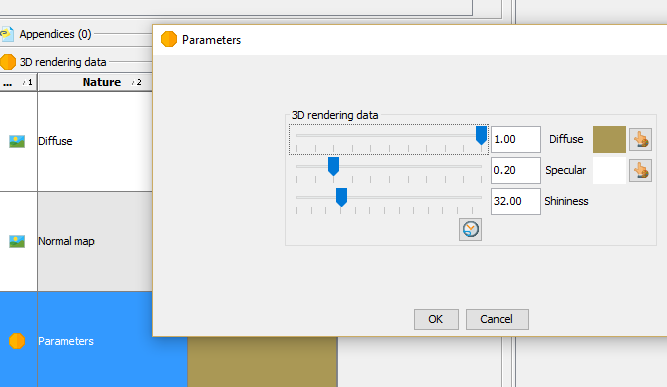
| Declination level > 3D rendering data > Parameters |
Optional, if not present use a default soft color |
Material |
| General level > 3D rendering data > Texture |
Grayscale picture |
Texture (Multiply) |
| General level > 3D rendering data > Bump texture | Picture in black and white or colored (Normal map) | Bump texture |
| General level > Picture | Grayscale picture |
Texture (Multiply) |
| Declination level > Color |
Uses the RGB components of the color |
Material (soft) |
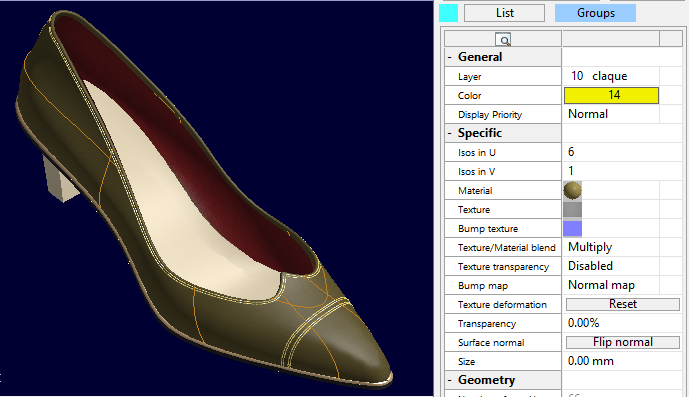
Bump map
If a "Bump texture" picture exists in RCSDM (declination or general level), it will be applied as "Bump texture" in RCS 3D.
The Black an White or Normal Maps mode is applied in RCSD 3D.
Otherwise, the "Bump texture" image will be erased in RCS 3D.
Texture / Material
If the "3D rendering data parameters" exists in RCSDM , it will be applied as a "Material" in RCS 3D.
Otherwise, the color in RCS DM will be applied as a "Material" in RCS 3D with default parameters (soft material).
Note that in RCSD 3D in "Texture only" mode the diffuse parameter of the Material is ignored.
Otherwise, if a "Picture" exists in RCSDM declination level, it will be used as a "Texture" in RCS3D as Texture only.
If the "3D rendering data parameters" exists in RCSDM , it will be applied as a "Material" in RCS 3D.
Otherwise, the color in RCS DM will be applied as a "Material" in RCS 3D with default parameters (soft material).
Note that in RCSD 3D in "Texture only" mode the diffuse parameter of the Material is ignored.
Otherwise, If an "Texture" image exists in RCSDM in general level, it will be applied as a "Texture" in RCS 3D as Multiply mode.
If the "3D rendering data parameters" exists in RCSDM , it will be applied as a "Material" in RCS 3D.
Otherwise, the color in RCS DM will be applied as a "Material" in RCS 3D with default parameters (soft material).
Note that in RCSD 3D in "Multiply" mode the diffuse parameter of the Material combined with the texture.
Otherwise, if a "Picture" exists in RCSDM general level, it will be used as a "Texture" in RCS3D as Multiply mode.
If the "3D rendering data parameters" exists in RCSDM , it will be applied as a "Material" in RCS 3D.
Otherwise, the color in RCS DM will be applied as a "Material" in RCS 3D with default parameters (soft material).
Note that in RCSD 3D in "Multiply" mode the diffuse parameter of the Material combined with the texture.
Otherwise
"Texture" in RCS3D will be deleted.
If the "3D rendering data parameters" exists in RCSDM , it will be applied as a "Material" in RCS 3D.
Otherwise, the color in RCS DM will be applied as a "Material" in RCS 3D.
Beeing seen as scenario...
For existing raw materials:
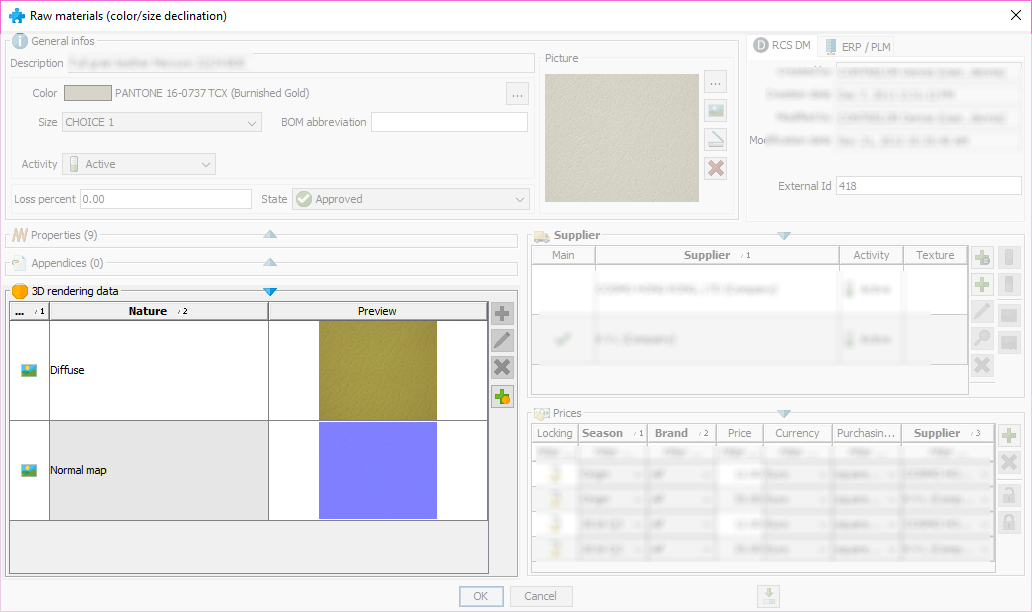
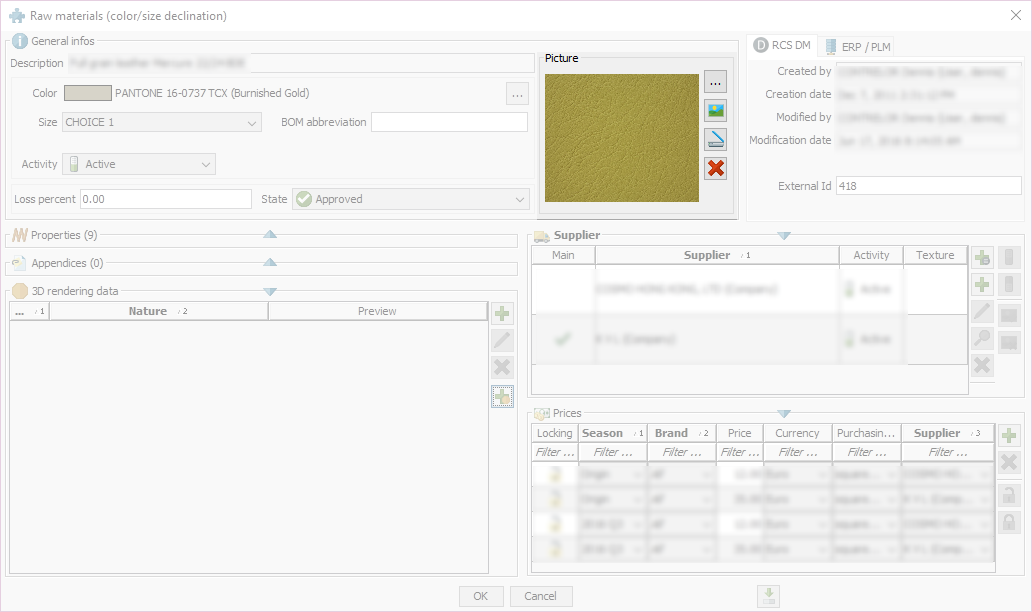
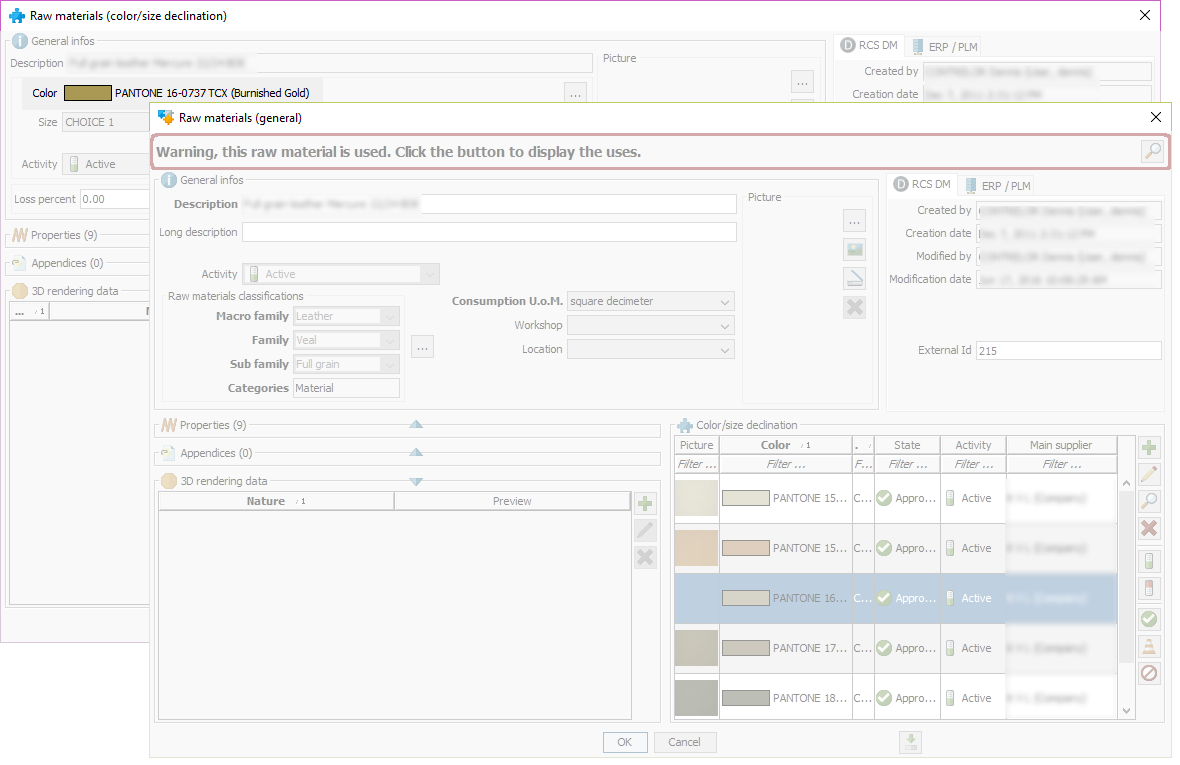
At the color/size declination level you can define picture at two places: - The 3D rendering place give more reliable result as you can use a bump picture. - If not, the picture is used for the parts rendering.
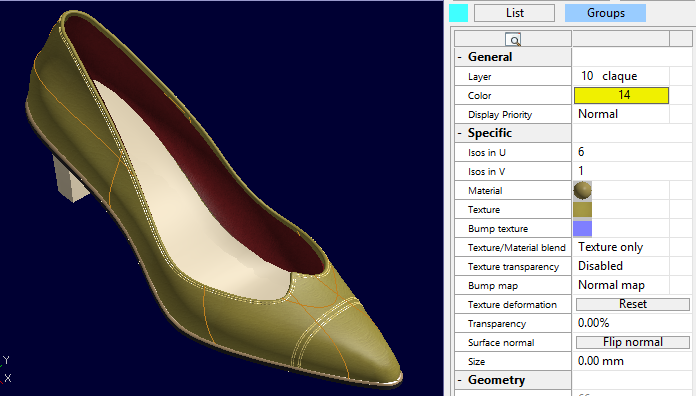
| Pictures in 3D Rendering pictures for the color declination.
|
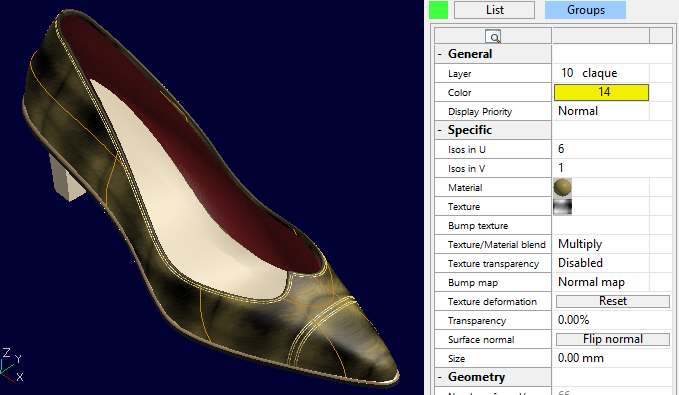
Apply diffuse picture as texture (blend mode texture only) Apply the normal maps as bump picture.
|
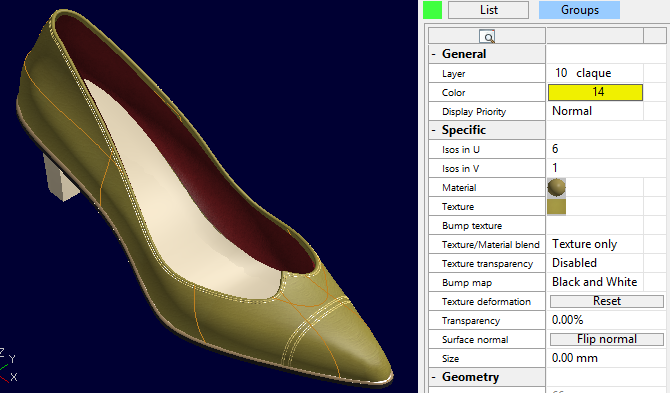
| Picture is defined for the color declination. (No 3D rendering picture is defined)
|
Apply the picture as texture (blend mode texture only) The bump picture is empty.
|
By default a smooth rendering is used.
You can define you own shininess rendering: by creating rendering parameters:
For new color/size declinations:
With these new color/size declinations you don’t have pictures yet defined.
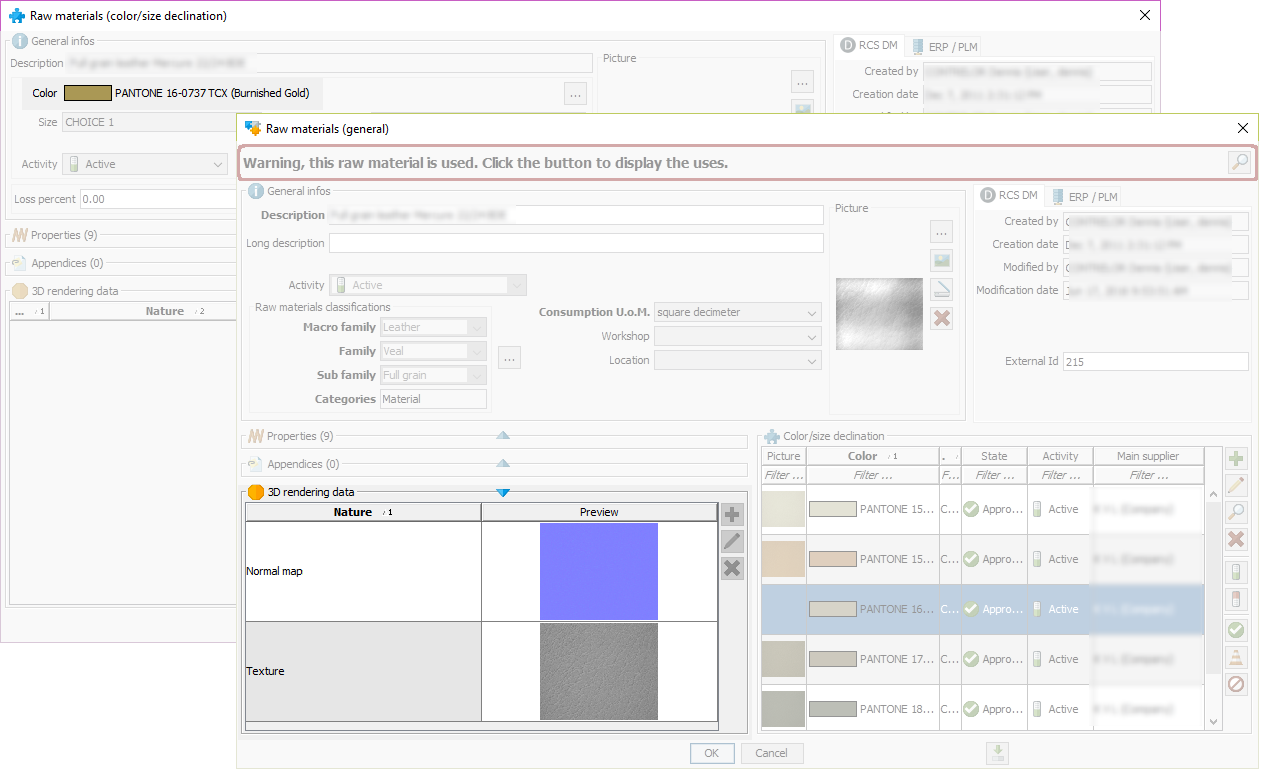
We use the general grayscale picture mixed with the RGB color components (Texture/Material blend is set to Multiply).
At the general level you can define picture at two places:
- The 3D rendering place give more reliable result as you can use a bump picture.
- If not, the picture is used for the parts rendering.
| The color is defined (RGB components) No picture is defined for the color declination. 3D Rendering pictures are defined for the general level
|
Apply texture picture as texture (blend mode Multiply) Apply the normal maps as bump picture
|
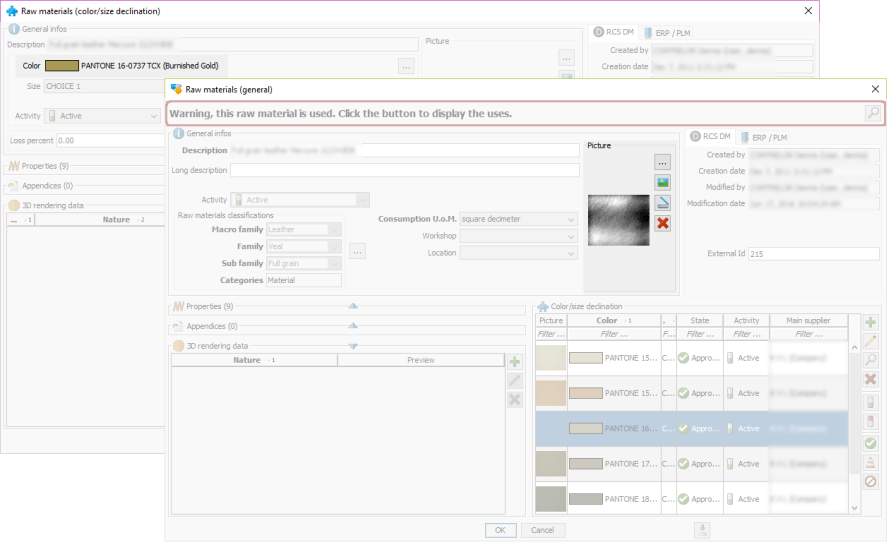
| The color is definied (RGB components) No picture is defined for the color declination. Only picture is defined at the general level (no rendering picture)
|
Apply picture as texture (blend mode multiply) The bump picture is empty.
|
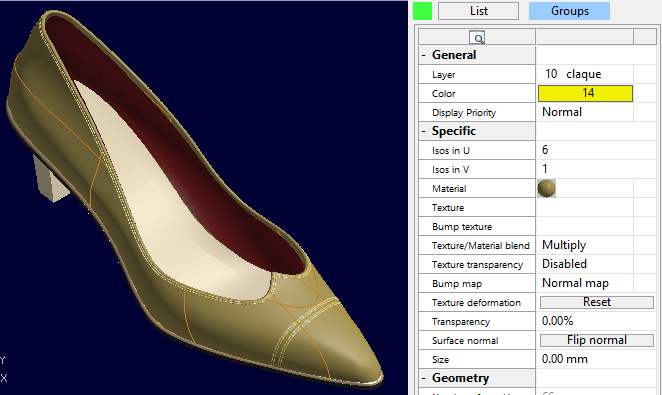
| If no picture is defined at all, we use the RGB color components alone. No picture is defined for the color declination. No picture is defined at the general level.
|
The texture and bump pictures are empty
|
Was this article helpful?
That’s Great!
Thank you for your feedback
Sorry! We couldn't be helpful
Thank you for your feedback
Feedback sent
We appreciate your effort and will try to fix the article